Updated on: 11 Apr 2025
By: Admin
Access Management ensures secure and controlled access to the dashboard resources, and data. It allows admin to manage user permissions, roles, and authentication processes efficiently.
How do I add a new user to the portal?
To add a new user:
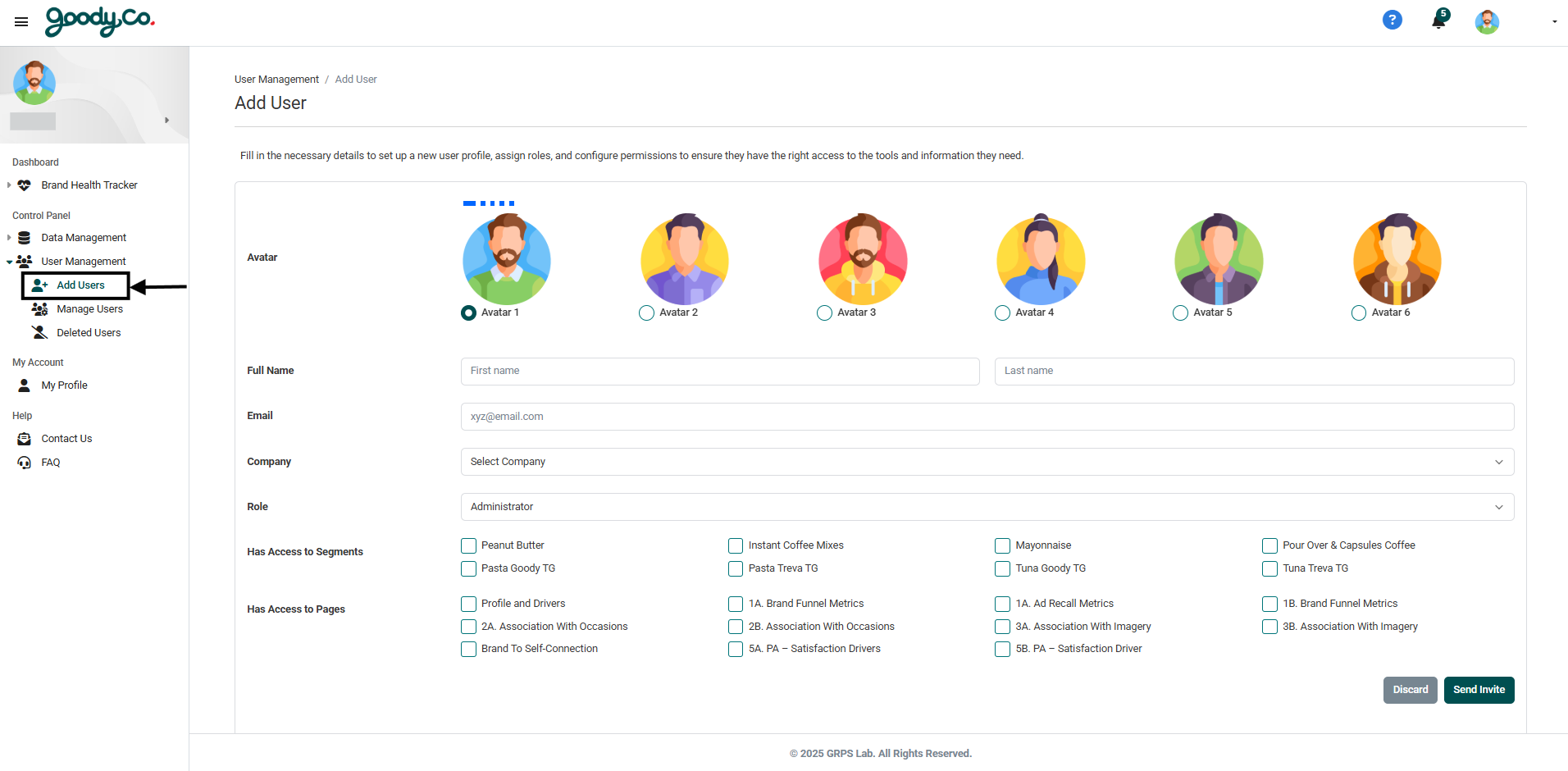
1. Go to the Control Panel section in the dashboard.
2. Select "User Management" from the menu.
3. Click on "Add Users".
4. Fill in the user's details, such as name, email, and role.
5. Click "Save" to send an invitation to the user.
How do I delete a user from the portal?
To delete a user:
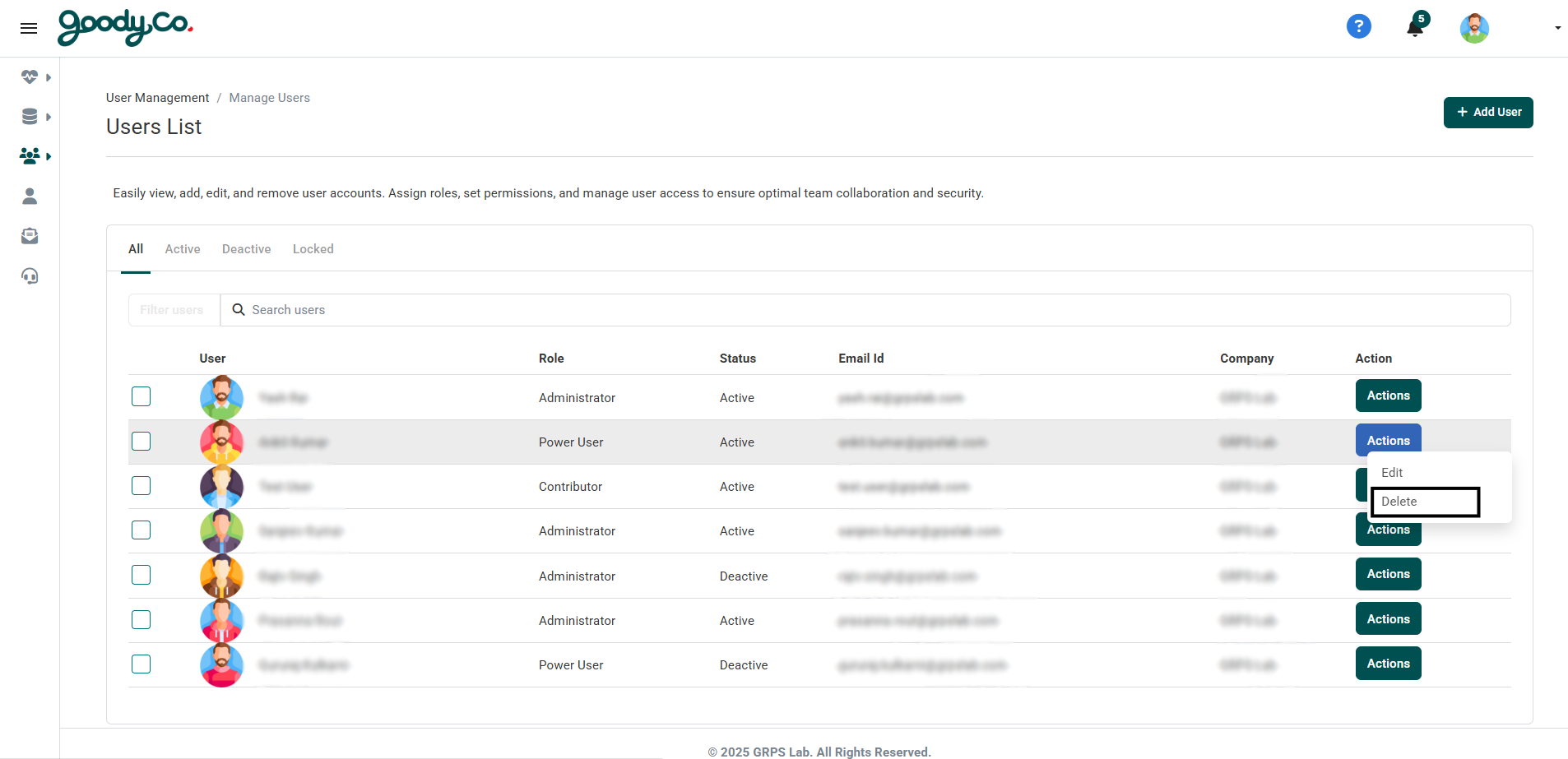
1. Navigate to the User Management section.
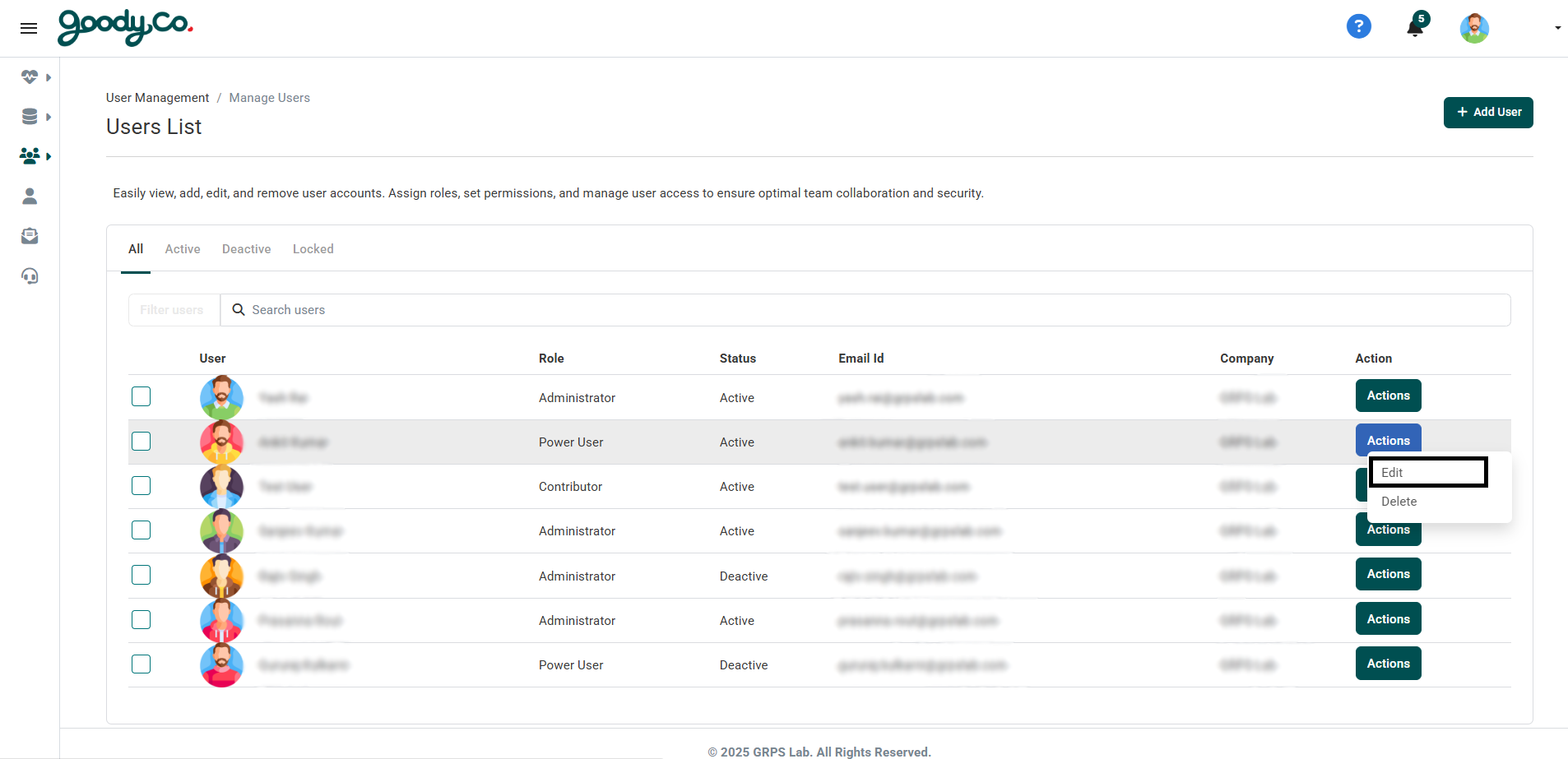
2. Click on "Manage Users".
3. Search for the user you wish to remove.
4. Click on the "Action" option next to their details and select Delete.
5. Confirm the action when prompted.
Note: Only users with admin privileges can perform this action.
What roles are available in the portal?
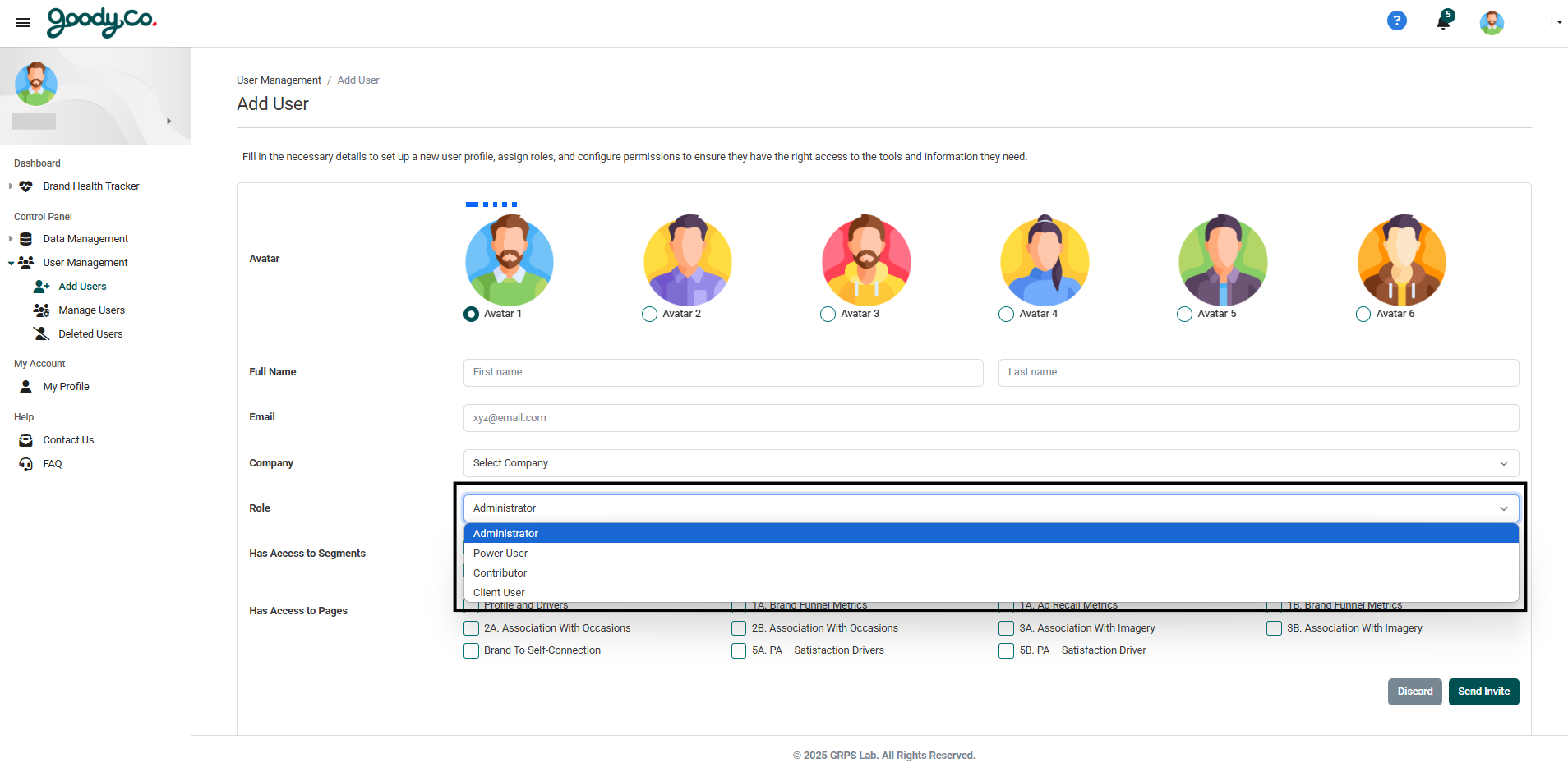
Roles available in the portal:
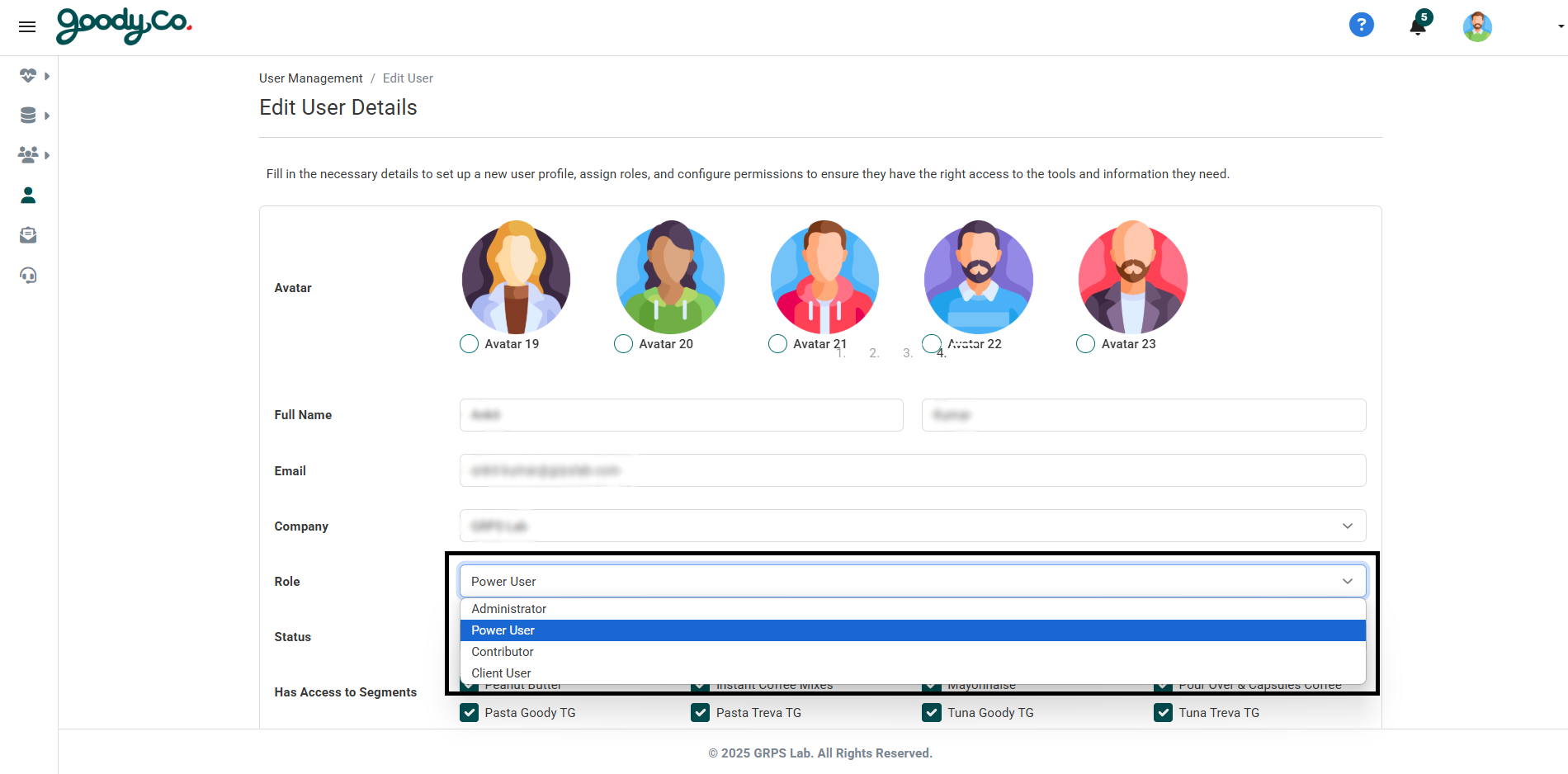
1. Administrator: Full access to all features and user management.
2. Power User: Can add, edit, and delete data along with managing users.
3. Contributor: Can add, edit, and delete data but cannot manage users.
4. Client User: Read-only access to the data and dashboard.
How do I update a user's role?
To update a user's role:
1. Go to User Management in the dashboard.
2. Click on "Manage Users".
3. Locate the user whose role you wish to update.
4. Click on the "Action" option next to their details and select Edit.
5. Select the new role from the dropdown menu.
6. Click "Save" to apply the changes.
Who can I contact for access-related issues?
For access-related issues:
1. Reach out to the Admin Team via email or the support portal.
2. Provide details about the issue, such as your account email and any error messages.
3. The support team will assist you promptly.